

Account and privacy
Everything here is in Settings.
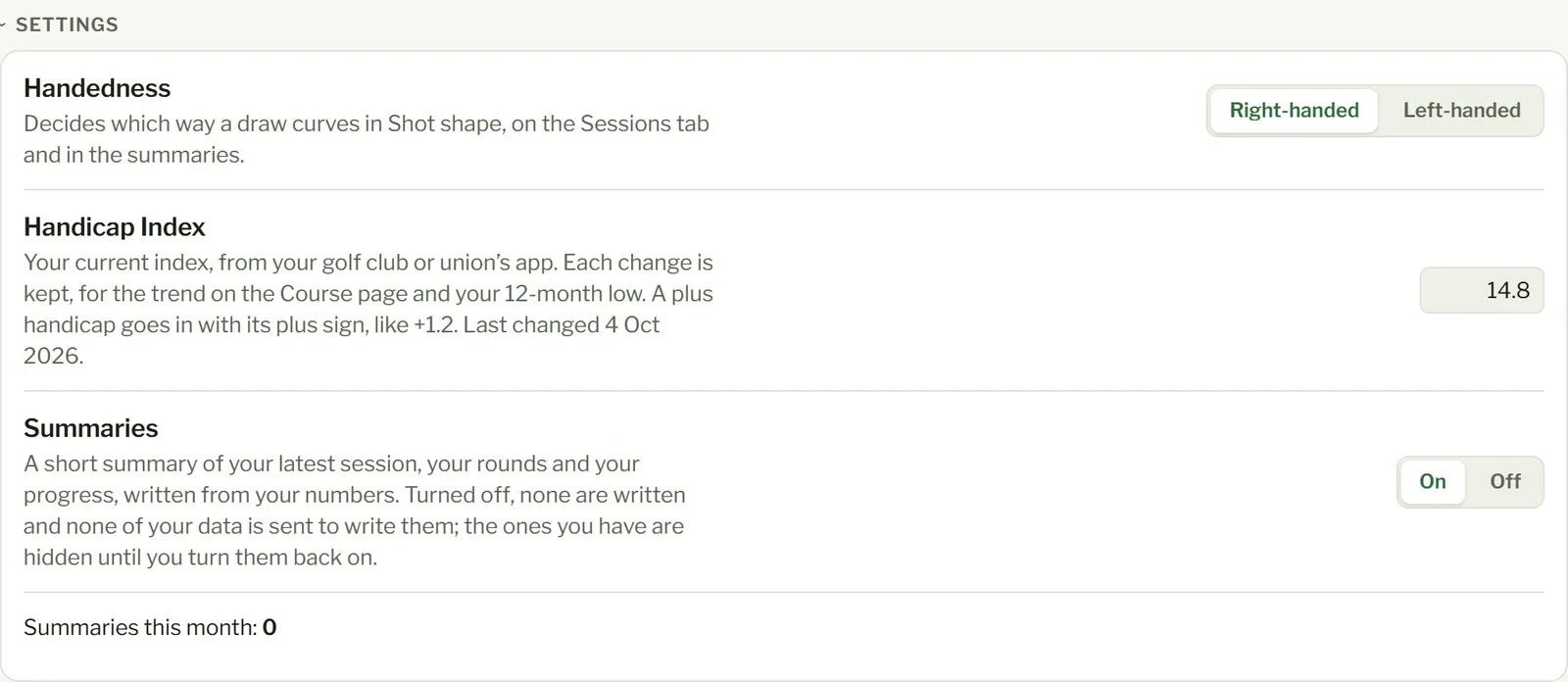
Your details
Section titled “Your details”- Handedness: right- or left-handed.
- Handicap Index: type it in (a plus handicap as +1.2). Each change is kept, for your trend, your 12-month low and the handicap strokes on your rounds’ scorecards.
- Time zone: decides which day is your today, for a new Handicap Index, a goal and “this month”. It’s set from your device the first time you open the app and stays as it is when you travel, unless you change it here.
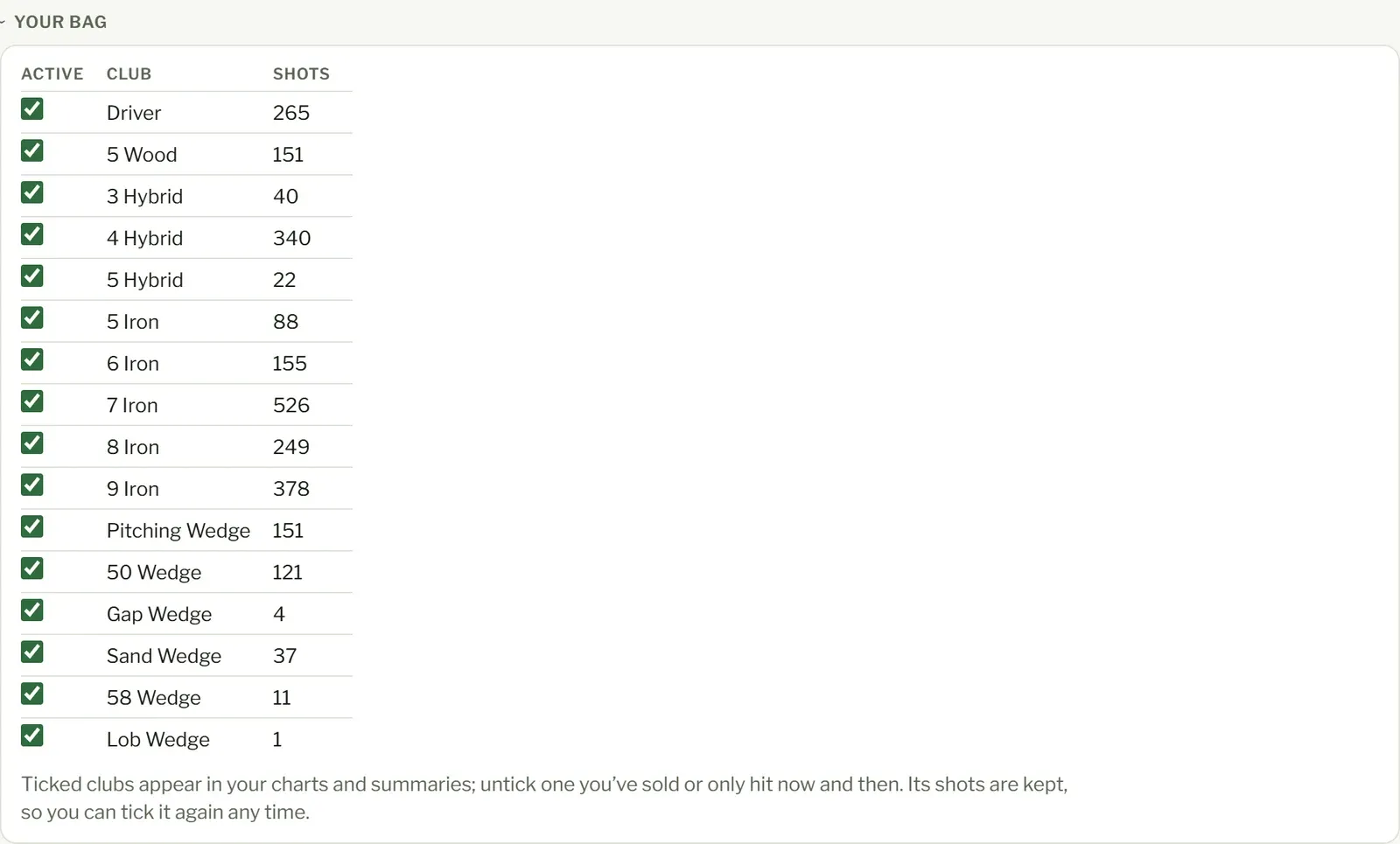
- Your bag: tick the clubs you carry. Only ticked clubs appear in your charts and summaries. A club joins your bag, ticked, the first time you upload shots with it, on the range or in a round tracked shot by shot, so untick one you’ve sold or only borrowed. Each club shows its shots on the range and on the course, for whichever you have. At least one stays ticked.
- Club names in your files: every club name your uploads have used, and the club its shots go to. Standard names (“7i”, “7 Iron”, “PW”, “52°”) go to that club by themselves. A name that isn’t one (a “Chipper”, say) is on No club, listed first, and its shots are left out of your numbers until you pick its club. Pick another club for any name to move it: its shots go with it, and so do later uploads with that name. A shot you corrected by hand stays where you put it.
- Summaries: on or off. When they’re off, none are written and nothing is sent to write them. Settings also shows how many sessions and rounds have been summarised this month.
- Summaries language: the language your summaries are written in; the rest of the app stays in English. It’s set from your device the first time you open the app, or English (UK) if your device’s isn’t on the list, and it’s sent with your numbers to write them. Changing it applies to new summaries only: the ones you have stay as they are, and nothing is rewritten or taken from your month’s summaries.
On your phone
Section titled “On your phone”How to add Paragraph to your phone’s home screen, for the phone you’re on: the steps on an iPhone, an Install app button on Android, or how to get it on your phone when you’re at a computer. More in On your phone.
Sign-in methods
Section titled “Sign-in methods”You can have more than one way to sign in: Sign-in methods lists the ones you have, with a button to link Google or Microsoft and one to Add a passkey on the device you’re using. Add a second one, so if you lose access to one (a closed work account, a forgotten password, a lost phone) you can still get in with the other, and your sessions and rounds are still there. Your only way to sign in can’t be removed until you’ve added another.
A passkey signs you in with Face ID, a fingerprint or your device’s PIN. Your phone, computer or password manager keeps it (iCloud Keychain and Google Password Manager share it between your devices); Paragraph keeps only its public half, which can’t sign anyone in on its own. On a computer without your passkey, choose Continue with a passkey and scan the code it shows with your phone. If you signed up with a passkey and nothing else, add a second one on another device, or link Google or Microsoft: a passkey kept on just one device is lost with it, and there’s no email address to get your account back by.
Your name, at the top, is the one the app shows. With Google or Microsoft it starts as the name they give; with a passkey it’s the one you gave when you signed up, or Golfer. Change it whenever you like.
Your data
Section titled “Your data”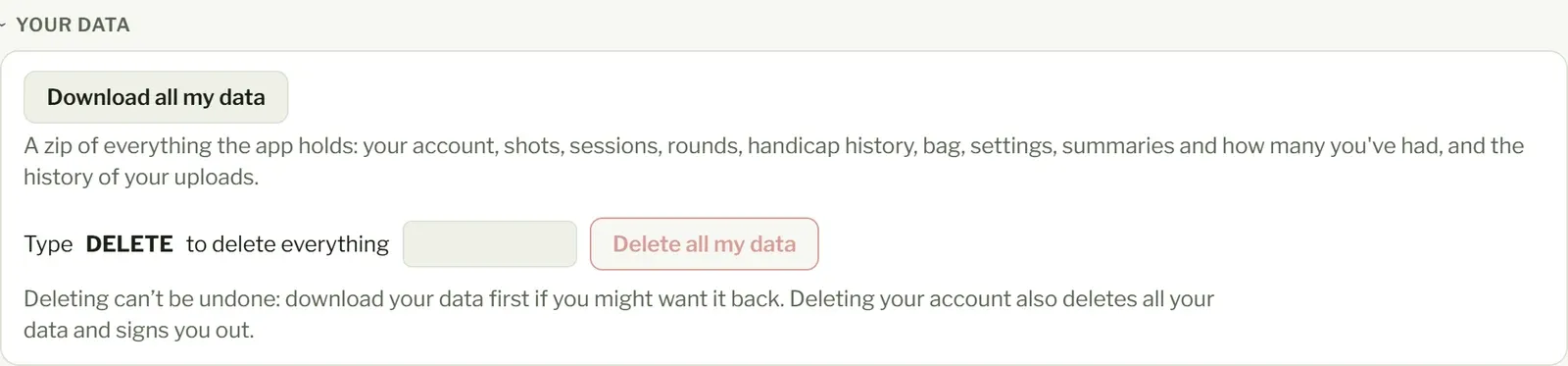
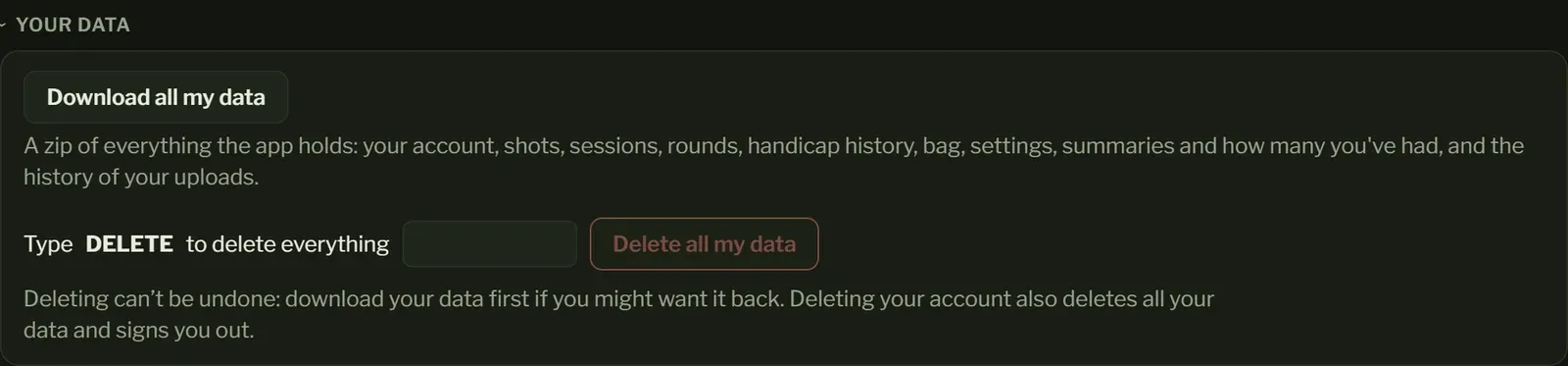
- Download all my data gives you a zip of everything: your account, shots, sessions, rounds, your courses’ tees, handicap history, bag, settings, summaries and upload history.
- To delete, type DELETE, then choose Delete my account: all your data goes with it and you’re signed out. If you pay for Pro, cancel it first in Your plan. Deleting can’t be undone, so download your data first if you might want it back.
MCP access
Section titled “MCP access”On Pro, you can chat about your game with the AI assistant you already use, if it supports MCP (an open standard for apps to read data from other services). Nothing can read your data this way until you make an API key and add it to your assistant. It can then read your rounds hole by hole, range sessions and their shots, club gapping, courses and Handicap Index history. It can only read; nothing can be changed or deleted through it.
- In MCP access, choose Make an API key. Copy it straight away: it’s shown only once.
- Add Paragraph to your app, with the server address Settings shows and the header
Authorization: Bearerfollowed by your key. - If your app starts its MCP servers from a config file, use Copy config instead and add what it copies to that
file. It runs a small bridge,
mcp-remote, so you need Node.js installed.
The config looks like this, with your own key in it:
{ "mcpServers": { "paragraph": { "command": "npx", "args": ["mcp-remote", "https://app.paragraph.golf/api/mcp", "--header", "Authorization:${PARAGRAPH_AUTH}"], "env": { "PARAGRAPH_AUTH": "Bearer paragraph_your-key" } } }}Keep your key to yourself: anyone who has it can read your data. Replace key gives you a new one and stops the old one at once; Revoke stops it altogether. Settings shows when the key was last used. Your key stops working while you’re not on Pro and works again when you are, and it’s deleted with your account.
How we look after your data is on our privacy page.