
Importing range sessions
Paragraph works with any launch monitor, simulator or range app that can save your shots as a CSV file. One session or many in a file, in any layout. See which files work.
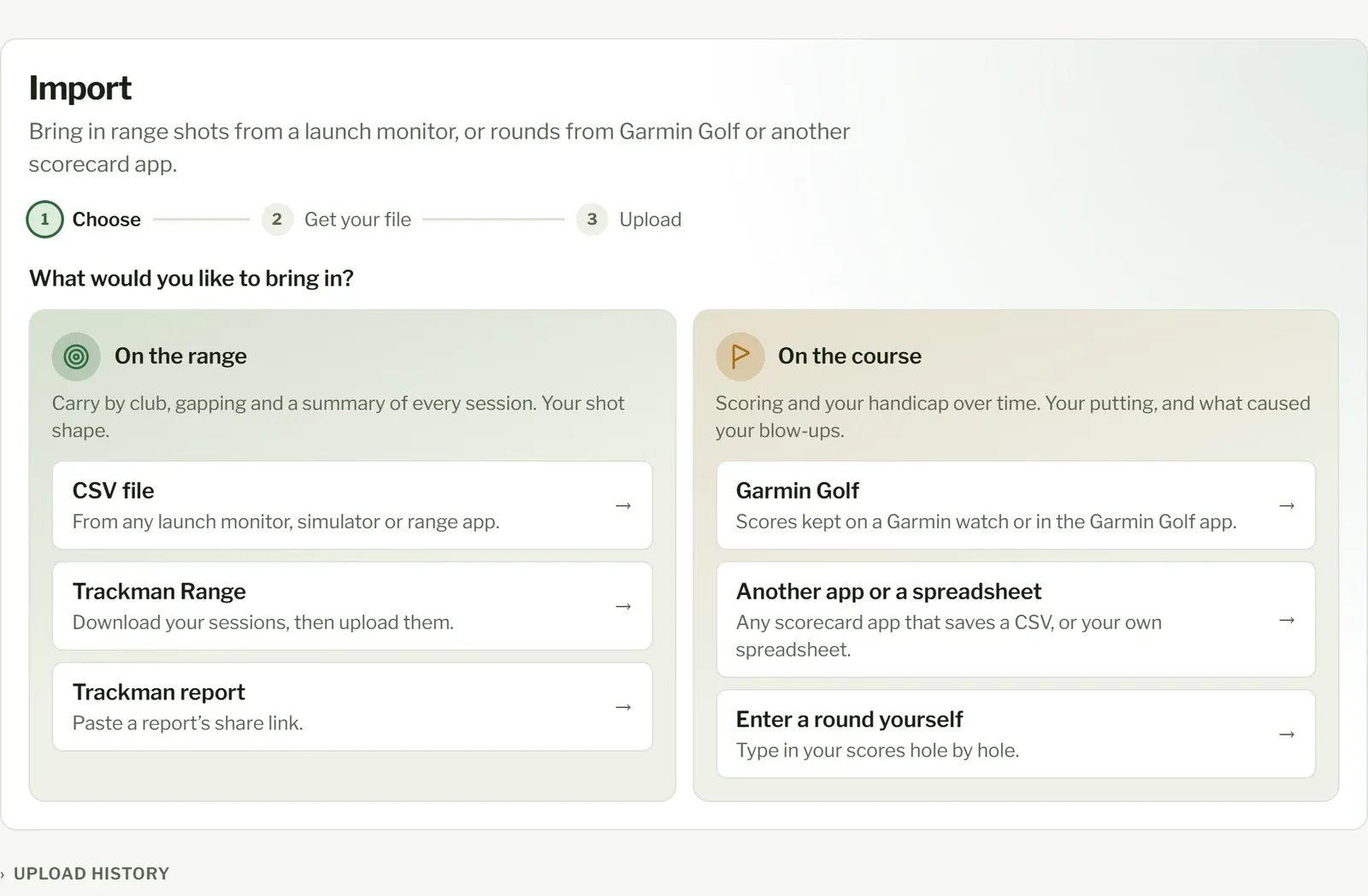
- Open Import and choose CSV file. On Trackman, choose Trackman account or Trackman report instead.
- In your launch monitor’s app (or your range’s), save your shots as a CSV.
- Drop the file onto Shots CSV, or tap it to choose the file.
- Check what Paragraph reads each column as, and fix anything that’s wrong (see below).
- Press Import N shots.
That’s it: you’ll see Your shots are in. and a link to your sessions.
On Android you can share the file to Paragraph instead of steps 1 to 3: choose CSV file when Import opens.
Pasting a Trackman report link
Section titled “Pasting a Trackman report link”If you have a Trackman report’s share link, you don’t need a file. Open Import, choose Trackman report, paste the link and press Read report. You get the same check of the columns, and nothing changes until you press Import.
- It’s a link that starts
https://web-dynamic-reports.trackmangolf.com/. One link at a time, and only your own reports. - Paragraph fetches that one report, with no Trackman sign-in, and reads its shots: their date and time, club and numbers. It doesn’t read or keep the name on the report, and it doesn’t keep the link.
- Shots hidden on the report aren’t brought in. A report that compares you with someone else can’t be imported, and neither can a putting report.
- If the report doesn’t say which club, you pick the Club for every shot.
- A shot Trackman doubts is left out of your stats, unless it only doubts the spin: that shot still counts, spin included.
- The numbers are the shots as measured, even if the link shows them normalised to another ball.
- Trackman can change or end a report link at any time. If one won’t read, you’ll be told, and a CSV still works.
Downloading your Trackman shots
Section titled “Downloading your Trackman shots”Trackman’s website has no download for range or simulator sessions, so Paragraph gives you a browser favourite that makes one. You need a computer for this. Open Import and choose Trackman account, then:
- Show your favourites bar and drag the Download my shots button onto it, rather than clicking it. You only do this once.
- Sign in at Trackman’s portal and click the favourite there. A small box counts through your sessions, then a CSV downloads.
- Upload that CSV to Paragraph. Shots you’ve already uploaded aren’t counted twice.
- It covers your range practice and Find My Distance sessions, and the sessions saved to your Trackman account on a simulator or launch monitor: practice, virtual range, shot analysis and Map My Bag. Simulator sessions bring your club speed, smash factor, path, face and loft too. The first run fetches them all, and later runs only what’s new since your last download in that browser; the small box shows from which date.
- Range games and challenges, such as Hit It and Performance Center, aren’t included: Trackman keeps no club, or no shots at all, for them.
- If you lost a file or never uploaded it, press Download everything in the box.
- It runs only in your browser, in your own Trackman session. Paragraph never sees your Trackman password, and sees your shots only when you upload the file.
- It isn’t made by or affiliated with Trackman, who could stop it working at any time. Using it on your Trackman account is your choice and your responsibility, so read Trackman’s terms first.
- If it stops working, drag the button across again in case there’s a newer one.
Checking the columns
Section titled “Checking the columns”Paragraph matches your file’s columns for you: carry, ball speed, club, date and so on. The table shows each column, its first few values and what Paragraph reads it as. To change one, pick from its list; pick — ignore — to leave a column out. Distances and speeds have their own unit (yards, metres, feet, mph, km/h or m/s): check those too.
- CHECK marks a column Paragraph had to work out from its values. Make sure it’s right.
- Club numbers come in too when your file has them: club speed, smash factor, attack angle, club path, face angle, face to path and dynamic loft. A column your launch monitor leaves at 0 or blank is taken as not measured.
- If a date like 03/04 could be either way round, you’ll be asked which.
- If the file has no dates, pick the Session date.
- If it has no club column, pick the Club for every shot: export each club as its own file.
- Match the columns for me has another go at a new layout.
Paragraph remembers the layout: the next file from the same app is set up the way you left it. A Trackman file from Paragraph’s favourite or a report link is set up from the start.
Which files work
Section titled “Which files work”Any CSV file of shots: one row per shot, with a column for the club and for at least the carry or the ball speed. Paragraph works out the rest from the file, so there’s no list you have to be on. These are ones we’ve checked:
- Trackman (Performance Studio’s CSV, and range sessions downloaded with the favourite)
- Foresight (FSX 2020 and FSX Live)
- FlightScope Mevo+ (the FS Golf app) and the original Mevo (MyFlightScope’s
stats.csv) - Garmin Approach R10 and R50 (the Garmin Golf app’s driving range sessions)
- Rapsodo MLM2PRO
- Square Golf and Square Omni (Driving Range)
- SkyTrak (shot history)
- Uneekor (Refine: its file doesn’t name the club, so you pick it)
- GSPro
- Awesome Golf
In each, save or export the session as a CSV; where that is varies with the app’s version, so look in the session’s menu or the app’s help.
Something else? If it saves a CSV, try it: you’ll see what Paragraph makes of each column before anything is imported, and nothing changes until you press Import. Lines above the column names, a row of units under them, and average rows between clubs are all fine.
Good to know
Section titled “Good to know”- Shots you’ve already brought in aren’t counted twice, so it’s fine to import a file that overlaps an earlier one.
- Rows are skipped when they have no club, no date, or no carry or ball speed (usually a shot the launch monitor didn’t pick up). The line above the button says how many.
- Left-handed? Say so in Settings before importing: some launch monitors give path and face as in-to-out and open, which Paragraph turns into left and right for the side of the ball you stand on.
- Imported a file before club numbers were kept? Import it again: your shots get their club numbers and nothing is counted twice.
- Made a mistake? You can undo an import.
Launch monitor, watch and app names are trademarks of their owners; Paragraph isn’t affiliated with or endorsed by them.